
HappyHorse 1.0 + GPT Image 2.0: AI Game Video Workflow
A practical pipeline for using GPT Image 2.0 keyframes with HappyHorse 1.0 motion to create consistent AI game trailers, ads, and cutscenes.
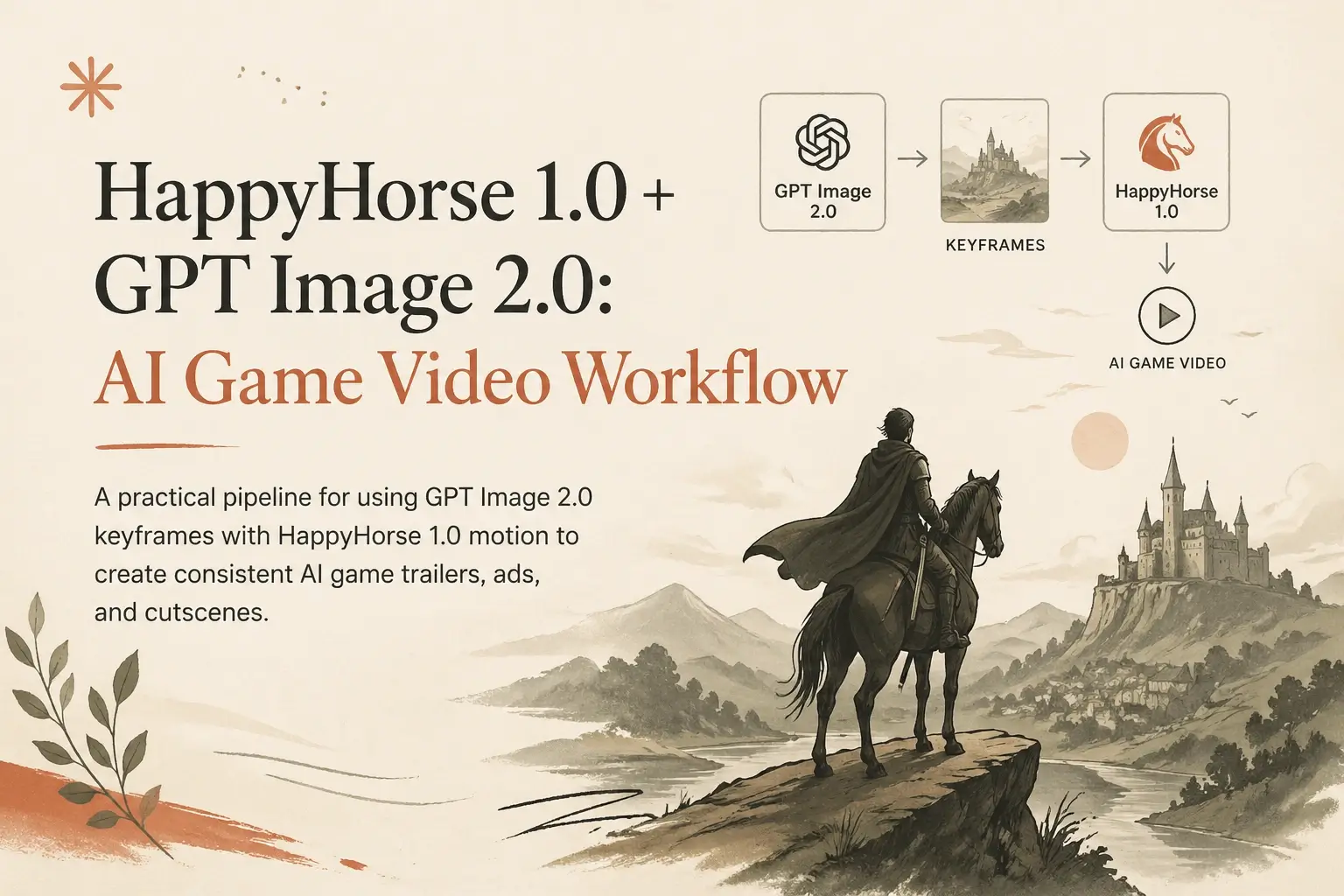
Game videos usually fail before the video model runs. The weak point is the still-image brief: character shapes drift, props change between shots, the level style is vague, and the final clip feels like disconnected concept art.
The most reliable workflow we use for AI game video is simple:
- Use GPT Image 2.0 to design stable still frames: character sheets, environment key art, item props, UI moments, and storyboard beats.
- Use HappyHorse 1.0 to animate the selected frames into short, controlled clips with motion, camera language, and audio direction.
- Edit the clips as if they were normal game trailer footage: title cards, music, SFX, cuts, and store-page variants.
This article is a practical production note for teams making game trailers, fake gameplay loops, NPC intros, boss reveals, Steam capsule motion concepts, TikTok ads, and prototype cutscenes.
Why pair an image model with a video model?
HappyHorse 1.0 can generate video from text or images, but game work benefits from a stronger preproduction layer. Games need repeatable visual systems: the same hero, the same armor language, the same UI color, the same world rules.
GPT Image 2.0 is useful before video because it lets you slow down and define those rules in still frames. You can iterate on:
- Character silhouettes
- Weapon and prop shapes
- Environment mood
- Camera framing
- UI overlays
- Poster and thumbnail readability
- Reference sheets for later shots
Once the visual direction is stable, HappyHorse 1.0 has a clearer job: move the scene, not invent the whole world again.
For most game videos, that separation is the difference between “interesting AI output” and “usable campaign asset.”
The three-layer workflow
Layer 1: World Bible
Start with a short visual bible. Do not begin with a full trailer prompt. Write a compact description of the game world:
Dark fantasy action RPG, ruined moonlit citadel, black iron armor,
red crystal corruption, practical medieval silhouettes, cinematic
third-person camera, high contrast blue moonlight and ember accents.
Then generate four to eight GPT Image 2.0 stills:
- Main hero full body
- Enemy or boss full body
- Environment establishing shot
- Combat close-up
- Loot or item showcase
- UI or inventory mock frame
Keep the same style words across every prompt. Change only one thing at a time.
Layer 2: Shot Boards
After the visual bible works, make storyboard frames. A useful sequence for a 15-second game video is:
- Hook: a readable hero pose or danger moment.
- World: a wide shot that explains the level.
- Mechanic: combat, crafting, movement, puzzle, or ability use.
- Reward: boss reveal, loot drop, transformation, or victory.
- CTA frame: logo-safe ending composition.
GPT Image 2.0 is especially helpful here because you can ask for frames that already respect trailer composition: negative space for text, clear foreground/background separation, and a camera angle that will survive mobile cropping.
Layer 3: HappyHorse 1.0 Motion Pass
Feed the best stills into HappyHorse 1.0 as image-to-video references. Keep each clip short. Five to eight seconds is enough for one idea.
Instead of asking for “an epic game trailer,” write the shot direction:
Animate this as a third-person game trailer shot. The armored hero
steps forward through drifting ash, cape moving in the wind. Camera
slowly pushes in from waist height. Red crystal light pulses in the
background. Keep the armor design, face silhouette, weapon shape,
and moonlit blue color palette consistent. Cinematic game trailer
pacing, no UI text, no scene change.
The key is to protect the important details. Tell HappyHorse what must not drift: face, costume, weapon, emblem, color palette, UI layout, or boss silhouette.
Prompt template for game videos
Use this structure when moving from GPT Image 2.0 stills to HappyHorse 1.0 video:
Role:
Create a short AI game video shot from the provided reference frame.

Scene:
[What the player sees in one sentence.]

Motion:
[One camera movement + one subject movement + one environmental motion.]

Game feel:
[Genre, pacing, animation style, combat weight, UI/no UI.]

Consistency locks:
Keep [character], [costume], [weapon], [color palette], [world detail]
consistent with the reference image.

Avoid:
No morphing face, no extra limbs, no logo text, no sudden scene cut,
no different outfit, no random UI.

Output intent:
Use as [Steam trailer shot / mobile ad hook / boss reveal / NPC intro].
The “Consistency locks” line is not decoration. It tells the video pass what the image pass already solved.
Example: boss reveal pipeline
GPT Image 2.0 keyframe prompt
Vertical 9:16 key art for a dark fantasy action RPG boss reveal.
A towering knight fused with red crystal stands in a ruined cathedral.
The player character is small in the foreground, back to camera,
black iron armor, long sword, blue moonlight, ember particles,
readable silhouette, no text, no logo, cinematic game trailer frame.
Review the still. If the boss silhouette is not clear at thumbnail size, fix the still before animating.
HappyHorse 1.0 video prompt
Animate this boss reveal as a short game trailer shot. Camera slowly
dollies forward from behind the player character. The boss lifts its
crystal blade and red light spreads across the cathedral floor.
Keep the player silhouette small, keep the boss shape and crystal
armor consistent, preserve the blue moonlight and red ember contrast.
Heavy fantasy game pacing, subtle dust, no text, no scene change.
This usually produces a cleaner shot than asking a video model to invent the boss, the cathedral, the player, and the camera all at once.
Aspect ratios: make one idea in two formats
Game marketing rarely ships in one format. Plan for at least:
- 16:9 for Steam pages, YouTube, and website heroes. Leave bottom-safe space for captions or UI.
- 9:16 for TikTok, Reels, Shorts, and mobile UA. Put the hero or enemy in the vertical center.
- 1:1 for store preview cards and social carousels. Avoid wide boss arenas that lose scale.
Do not crop a finished 16:9 clip into 9:16 if the action is spread across the frame. Generate a separate vertical keyframe with GPT Image 2.0, then run a separate HappyHorse 1.0 motion pass.
Where GPT Image 2.0 helps most
Character consistency
Generate a small character sheet first: front pose, three-quarter pose, combat pose, and close-up. Use the same costume vocabulary in every prompt. When HappyHorse animates a selected frame, it starts from a more stable visual identity.
Readable weapons and props
Game trailers rely on recognizable props: sword, wand, mech arm, potion, relic, vehicle. GPT Image 2.0 is a good place to lock those silhouettes before motion blur and particles enter the shot.
UI-safe frames
If you need a fake gameplay moment, create the UI as a still-frame concept first. Then decide whether to animate with UI visible or keep the video clean and add UI later in editing. For production ads, adding UI in the editor is usually safer because text remains sharp.
Store assets
The same stills can become Steam capsules, YouTube thumbnails, social cards, and pitch-deck slides. That makes the image pass valuable even when only a few frames become video.
Where HappyHorse 1.0 helps most
Camera and motion
HappyHorse is strongest when the prompt describes one shot clearly: push-in, orbit, pan, tracking shot, impact pause, reveal, idle animation, or spell charge.
Atmosphere
Game scenes often need motion that is not the main character: fog, sparks, drifting ash, water, cloth, magic particles, neon signs, grass, UI glow. These details make still art feel like a game world.
Trailer pacing
Use short clips and edit them together. A 30-second trailer built from six strong 5-second clips is easier to control than one long generation with multiple scene changes.
Common mistakes
1. Asking for the entire trailer in one prompt
This causes style drift. Split the trailer into shots and preserve the same visual bible.
2. Letting the model invent UI text
AI-generated UI text is risky. Keep video shots text-free when possible, then add titles, damage numbers, menu labels, and CTA text in the editor.
3. Mixing too many genres
“Cyberpunk medieval cozy horror roguelike” may sound fun, but it gives the model no hierarchy. Pick one primary genre and one visual twist.
4. Ignoring mobile readability
Most game ads are judged on phones. Test the still frame at small size before animating. If the silhouette is not clear, the video will not fix it.
5. Changing art direction mid-pipeline
If GPT Image 2.0 creates painterly concept art but HappyHorse is asked for realistic gameplay footage, the result can feel inconsistent. Keep the same target style through every pass.
A practical checklist
Before generating video:
- Is the hero readable at thumbnail size?
- Does the prompt specify the game genre?
- Are costume, weapon, and color palette locked?
- Is the shot one action, not three scenes?
- Is the target format 16:9, 9:16, or 1:1?
- Should UI be generated, or added later in editing?
- Is there enough negative space for captions?
After generating video:
- Check hands, face, weapon, and emblem first.
- Watch the loop twice without audio.
- Then check audio, SFX timing, and title-card placement.
- Export a mobile preview before approving the shot.
Recommended production loop
For a small game team, this is the fastest repeatable loop:
- Generate 12 GPT Image 2.0 stills from a single visual bible.
- Pick the best 5 stills.
- Animate each still into a 5-8 second HappyHorse 1.0 clip.
- Edit a 20-30 second trailer from the best moments.
- Rebuild the top 2 shots for vertical 9:16 ads.
- Reuse the strongest still as a thumbnail or store capsule draft.
The important part is reuse. A good GPT Image 2.0 keyframe is not only a video reference. It is also a style anchor, QA target, and marketing asset.
Final takeaway
Use GPT Image 2.0 as the art director and HappyHorse 1.0 as the motion director.
For AI game video, that division keeps the pipeline honest. The image model defines the world, characters, and frame composition. The video model brings that world to life through motion, camera, atmosphere, and timing.
When the still frame is clear, HappyHorse has less to guess. When HappyHorse has less to guess, your AI game video looks less random and more like a real creative asset.
Start with the image workspace at happyhorse.app/dashboard/ai-image, move selected frames into HappyHorse AI Video, and keep the whole workflow grounded in short, testable shots.